Documentation
Set up immotap for WordPress
This guide takes you straight from download to a fully embedded calculator. No coding required.
Overview
immotap Rechner brings ready-made real estate calculators to your WordPress website. Your visitors calculate right on your page, and you decide whether that also turns into inquiries.
If you can create a page in WordPress, you can handle this setup. The sections below walk through it step by step.
Requirements
Before you start, make sure your website meets these points:
- WordPress 6.4 or newer
- PHP 7.4 or newer
- Access to the WordPress admin area as an administrator
- For email inquiries: a working email setup on your website
You can find your WordPress and PHP version in the admin area under Tools, Site Health, Info.
Download the plugin
immotap Rechner is free and comes as a ZIP file. Request the download link with your email address and we'll send it right away.
Save the ZIP file to your computer. There is no need to unzip it, you upload the file directly to WordPress in the next step.
Install the plugin
Here is how to install the plugin in a few minutes:
- 1In the admin area, open the Plugins menu, then Add New.
- 2Click Upload Plugin at the top and select the ZIP file you downloaded.
- 3Click Install Now, then Activate Plugin.
- 4Done: the immotap Rechner entry now appears in the menu.
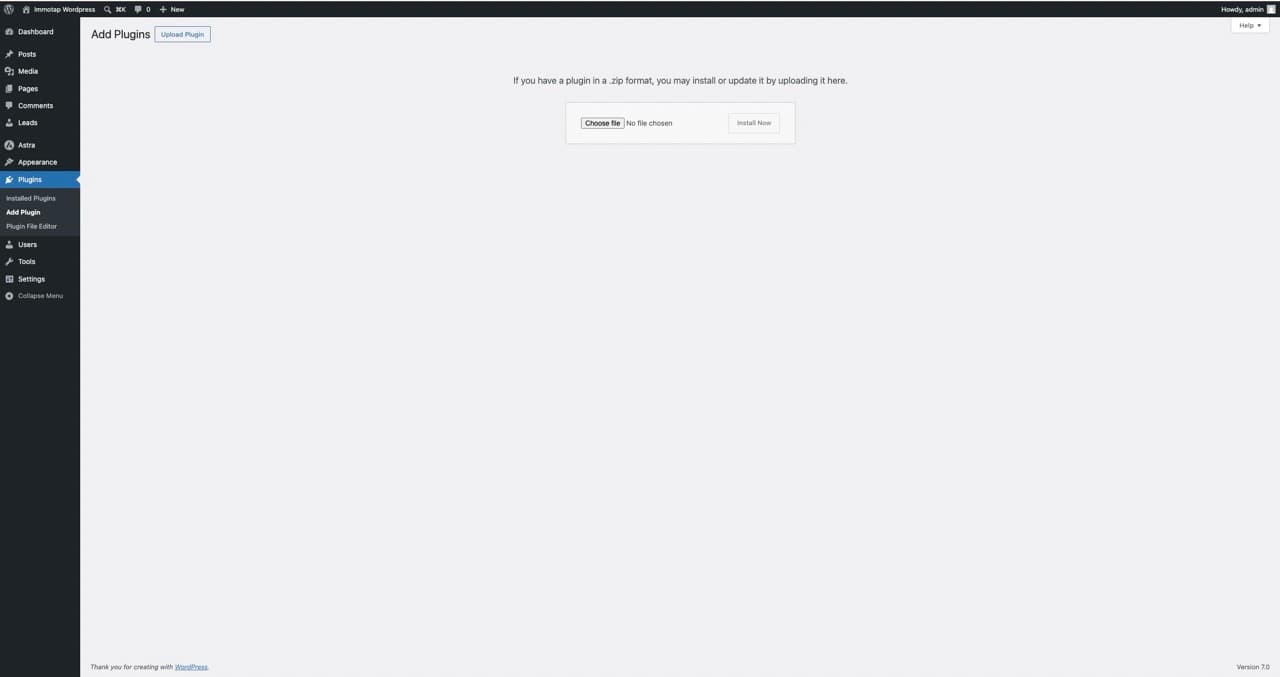
Alternatively, upload the ZIP contents via FTP to the wp-content/plugins folder and activate the plugin afterwards under Plugins.
Configure the settings
Open Settings, then immotap Rechner. Here you set the defaults for all calculators. You only need to do this once.
- Default mode
- Sets whether new calculators show the result immediately or only after an inquiry.
- Notification email
- We send new inquiries to this address. Separate multiple addresses with a comma.
- Retention period
- How long inquiries are kept before they are deleted automatically.
- Design
- Light or dark appearance and the accent color of the calculators.
- Privacy link
- Points to your privacy policy in the contact form. Required for lead capture.
- Consent texts
- The text your visitors agree to when they send an inquiry.
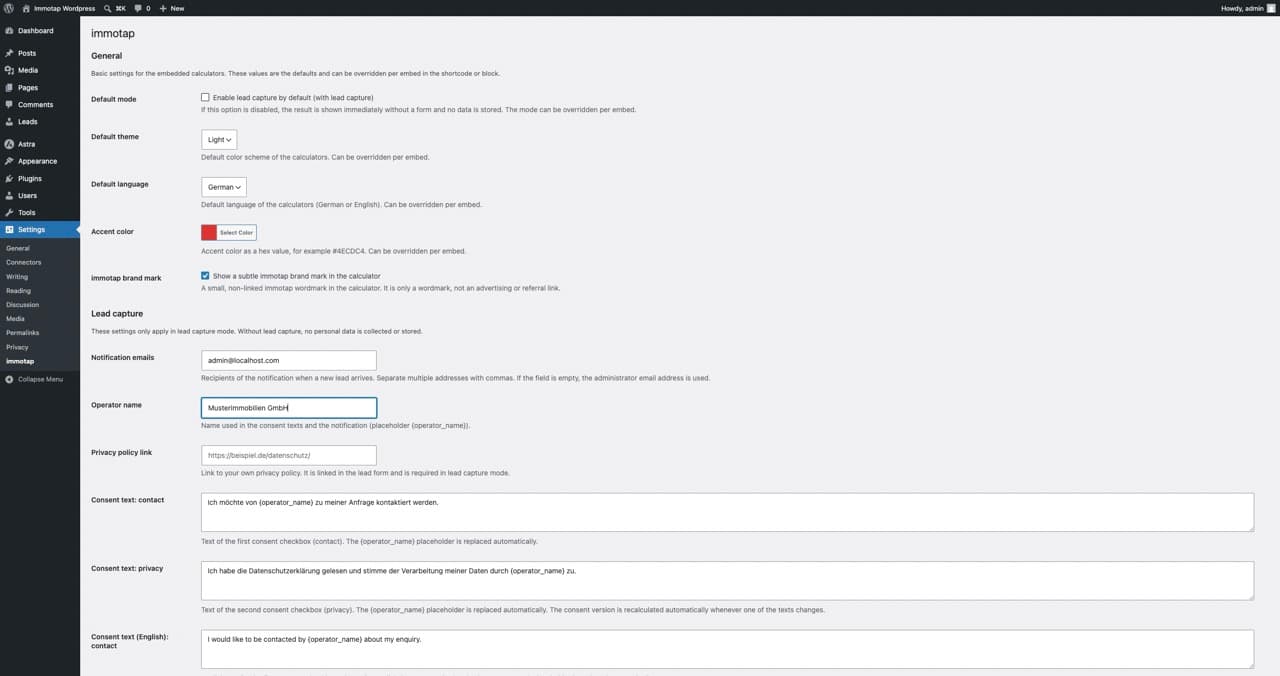
Each of these defaults can be overridden per embedded calculator.
Embed a calculator on a page
There are two ways to embed a calculator: through the block editor or via shortcode. Both lead to the same result.
Option 1: Block editor
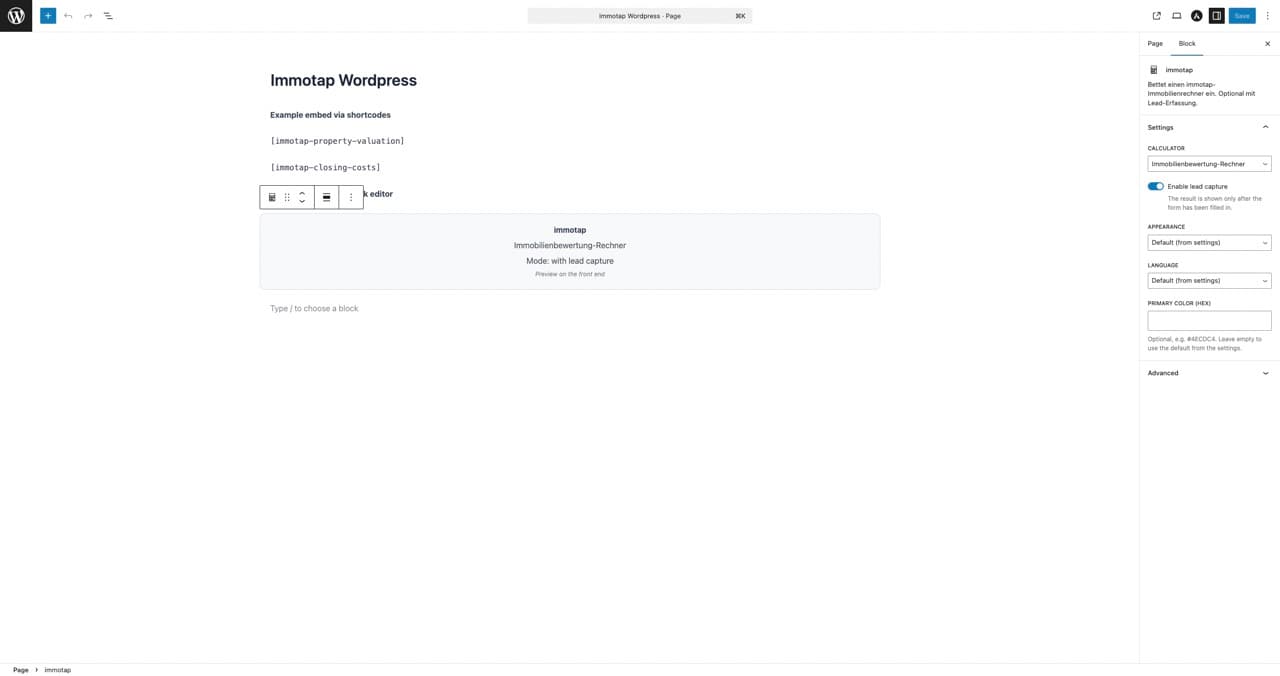
- 1Open the page or post you want in the block editor.
- 2Add the immotap Rechner block via the plus icon.
- 3In the sidebar, choose the calculator, mode, design and language.
- 4Save the page. The calculator appears on the published page.
Option 2: Shortcode
Add a shortcode to a post, page or text widget. The shortcode with the type attribute is recommended:
[immotap-rechner type="bewertung"]For lead capture, add lead_capture="on":
[immotap-rechner type="kaufnebenkosten" lead_capture="on"]Per-calculator shortcodes
For quick copy and paste, each calculator has its own shortcode. The English variants show the calculator in English automatically.
German
[immotap-immobilien-bewertung][immotap-kaufnebenkosten][immotap-energieeffizienz]English
[immotap-property-valuation][immotap-closing-costs][immotap-energy-efficiency]Available attributes
Use these attributes to adjust a calculator per embed:
| Attribute | Meaning |
|---|---|
type | Which calculator: bewertung, kaufnebenkosten or energieeffizienz. |
lead_capture | Turn lead capture on or off: on or off. |
theme | Appearance: light or dark. |
color | Accent color as a hex value, for example #4ECDC4. |
lang | Calculator language: de or en. |
Receive and manage inquiries
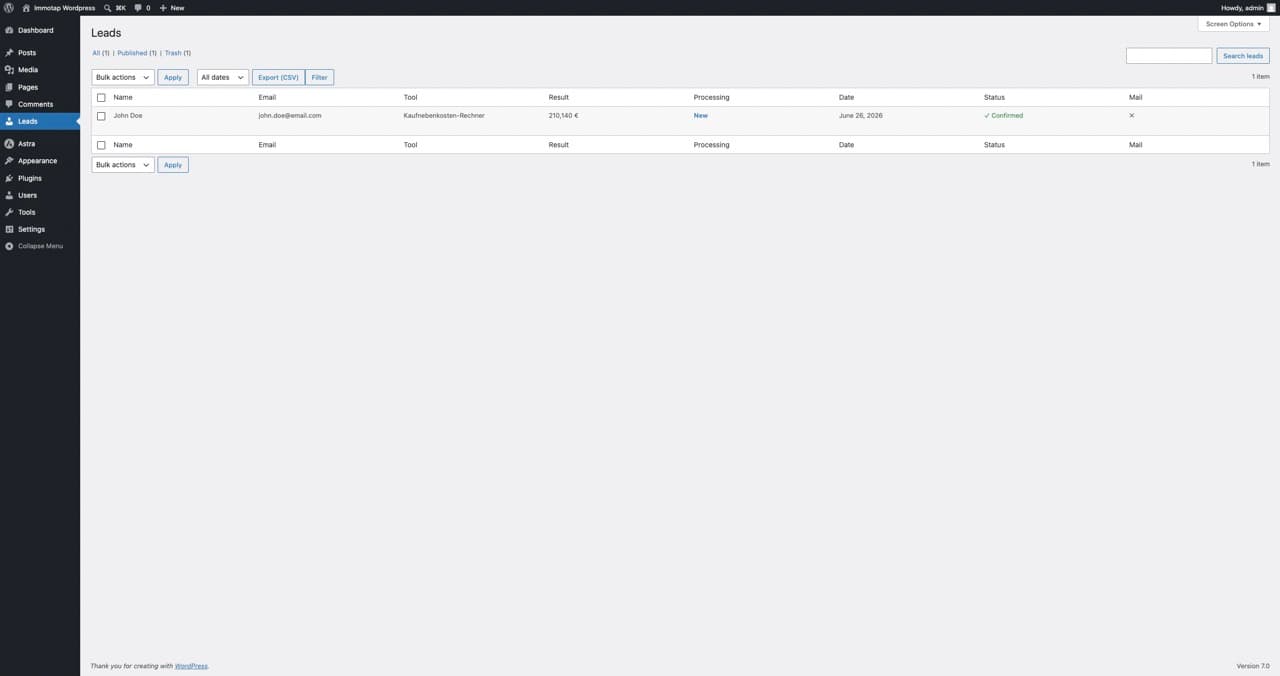
When lead capture is active, a visitor fills in the contact form to see the full breakdown. The inquiry lands directly in your WordPress database and you receive an email.
In the admin area you find all inquiries under the Leads menu, with name, contact, calculator, result and date.
Each inquiry has a status (new, contacted, done) and a notes field. Use the Export button to download all inquiries as a table.
If no emails arrive, check your website's email setup. An SMTP plugin or correct SPF and DKIM records often helps.
Data protection and GDPR
Every inquiry stays only in your own WordPress installation. No data is sent to immotap. You are and remain the data controller under the GDPR.
- Consent is stored with the text version and a timestamp.
- You set the retention period yourself, and old inquiries are deleted automatically.
- The WordPress tools for data export and erasure are supported.
- A ready-made text block for your privacy policy is available in the settings.
- The IP address is not stored by default.
This guide is guidance and does not replace legal advice.